What your client sees
You send a link and, by another route, an 8-character code. Your client opens the link on a phone or a computer, enters the code, reads the contract and signs. No account, nothing to install. These are the six screens, as they really look.
Simple electronic signature with an audit trail
- No account for signers
- Any phone or computer
- Signing pages in 33 languages
What you get when everyone has signed
What you send: a link and a code
When you send a contract, QuoteBill shows you one signing link and one 8-character access code for each signer, once. You deliver them yourself: the link by email or messenger, the code by another route, such as a phone call or a text message. QuoteBill sends no email.
Your client needs no account and nothing to install: a current web browser is enough. The link works for as long as you chose when sending, from 1 to 60 days (14 by default), and you can move that deadline while the contract is out.
The access code is on by default. You can switch it off for a contract, but then anyone who gets the link can open and sign it, and QuoteBill warns you of that when you send.
The six screens, in order
Screenshots of the real signing pages, with a made-up contract. Your client sees them in the language of the contract; the pages exist in 33 languages.
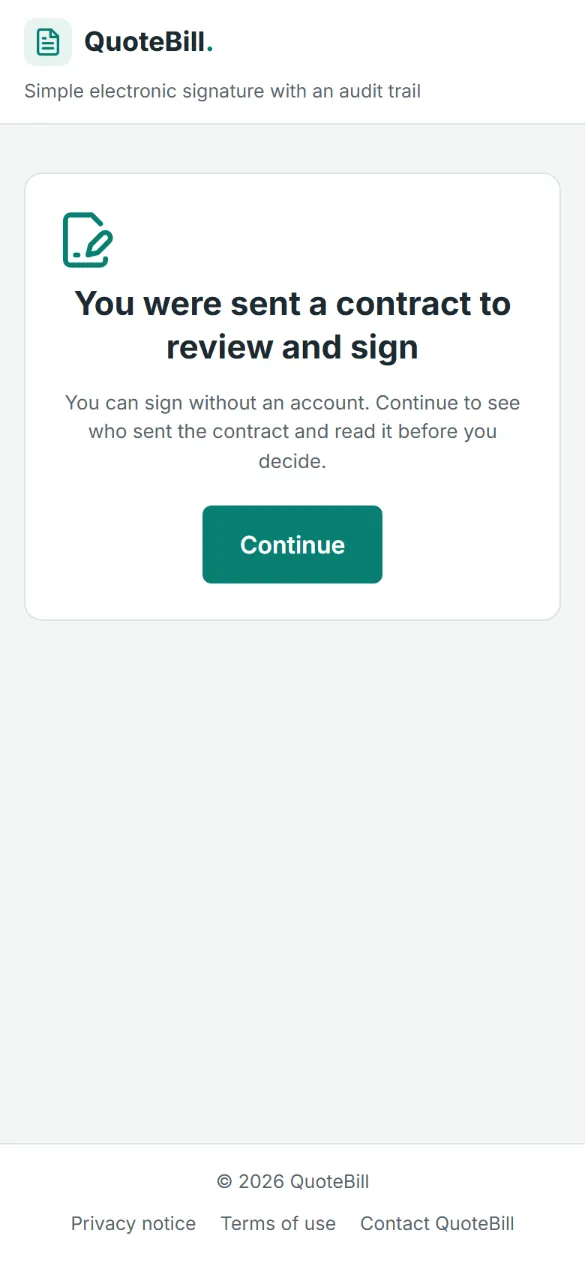
The link opens on a plain page: a contract was sent to review and sign, and no account is needed. Nothing is opened until your client presses Continue. 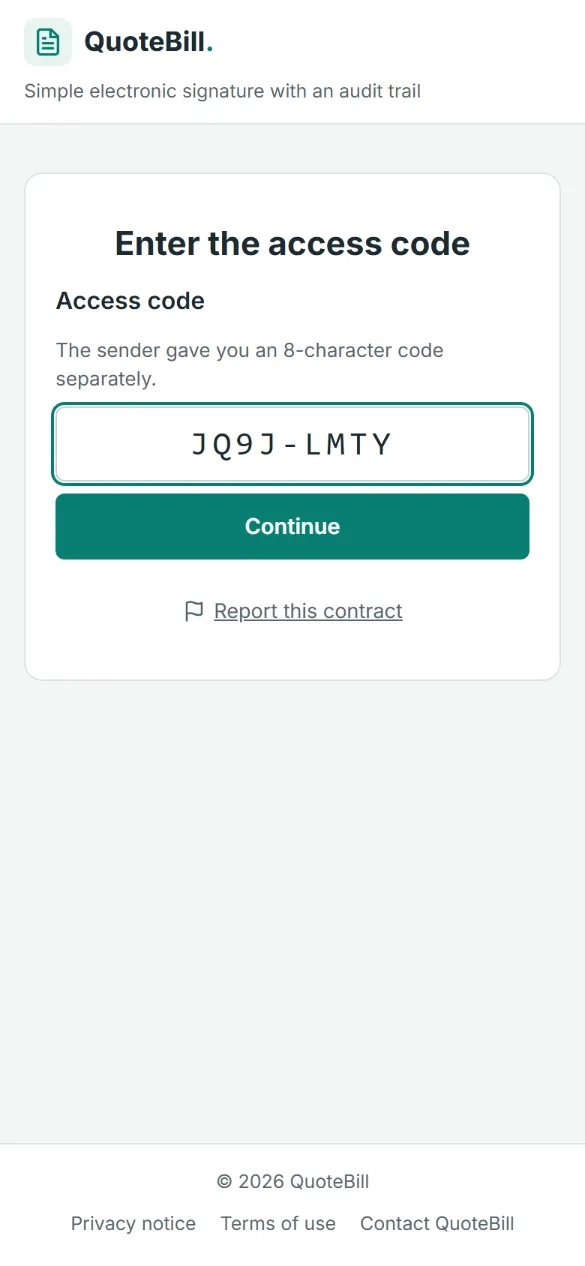
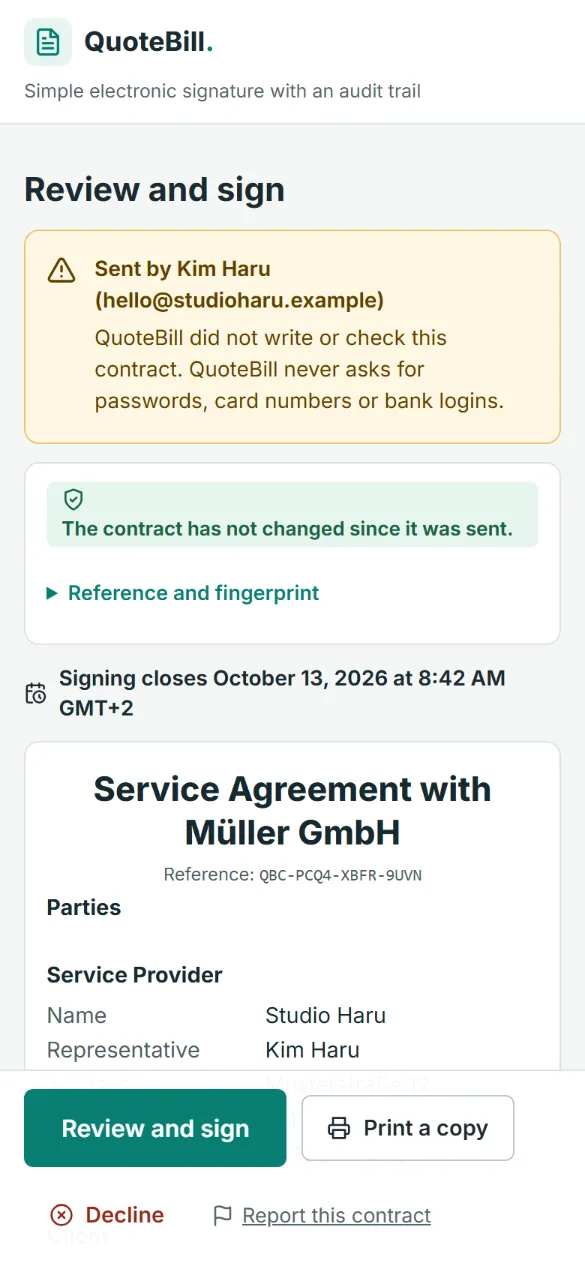
Then the access code, typed as XXXX-XXXX. After 5 wrong codes the link locks for 15 minutes; after 15 it stops working until you issue a new one. The contract itself, with your name and account email at the top, a note that the text has not changed since it was sent, the signing deadline and the other signers. From here your client can print a copy, decline or report the contract. 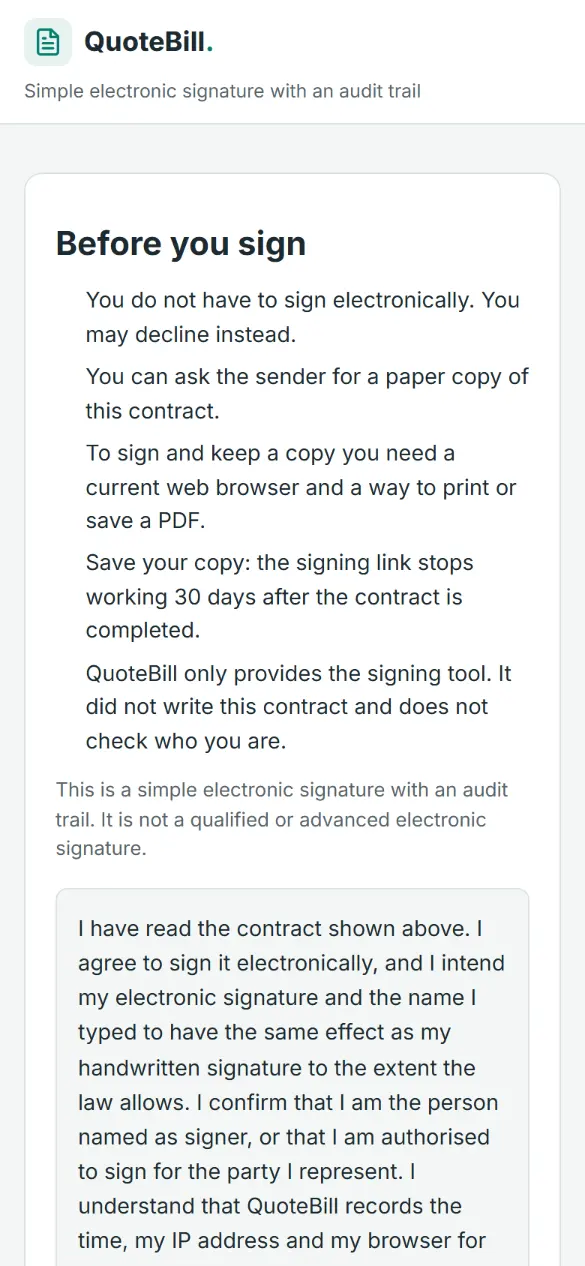
Before signing: five disclosures, the note that this is a simple electronic signature, and the consent text. The box must be ticked to go on. 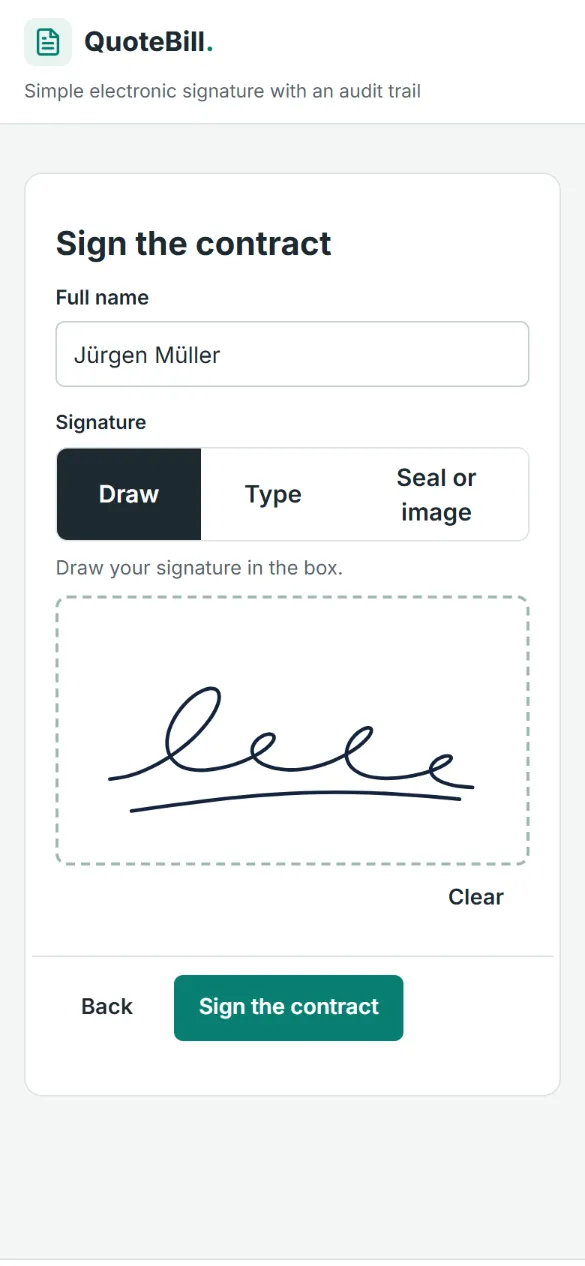
The signature: your client types their full name and draws a signature, types it, or uploads a picture of a seal or signature. 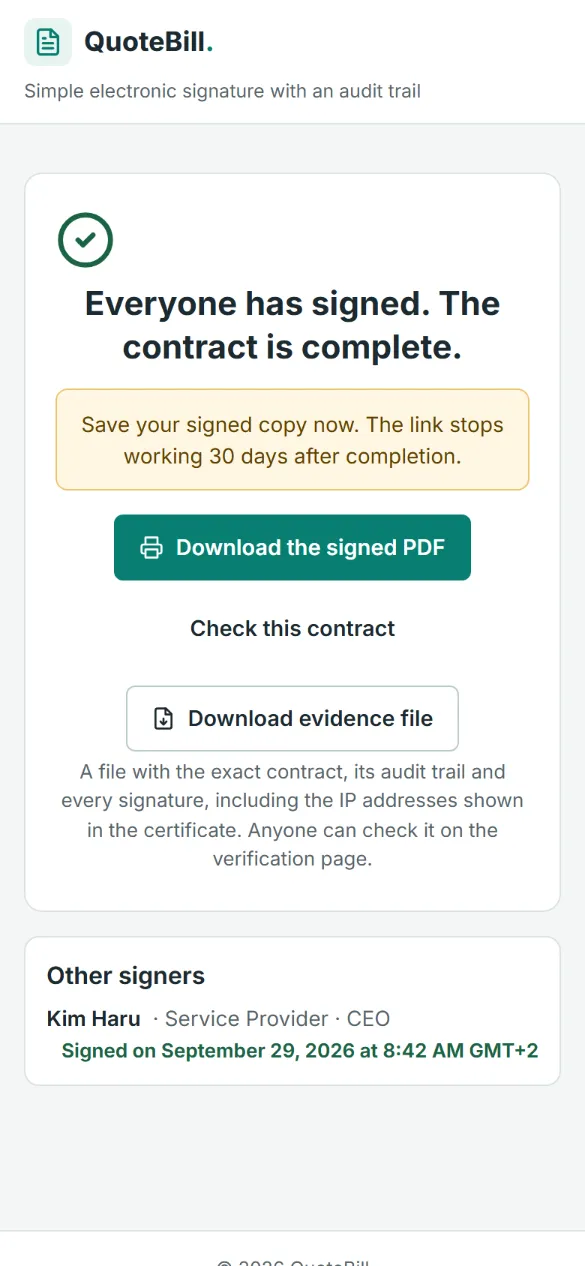
Done. The screen shows the other signers and where each stands. Once everyone has signed, it offers the signed PDF, the verification link and the evidence file.
What you do as the sender
Sending takes five short steps. You need to have signed in within the last 24 hours and to have a confirmed email address.
Name the signers
One signer for each other party, up to three. Their email address is optional. Keep the access code on and choose how long the link works: 1 to 60 days.
Enter your own name and role
You sign for your own business as party A, so QuoteBill asks for your name and, if you like, your role.
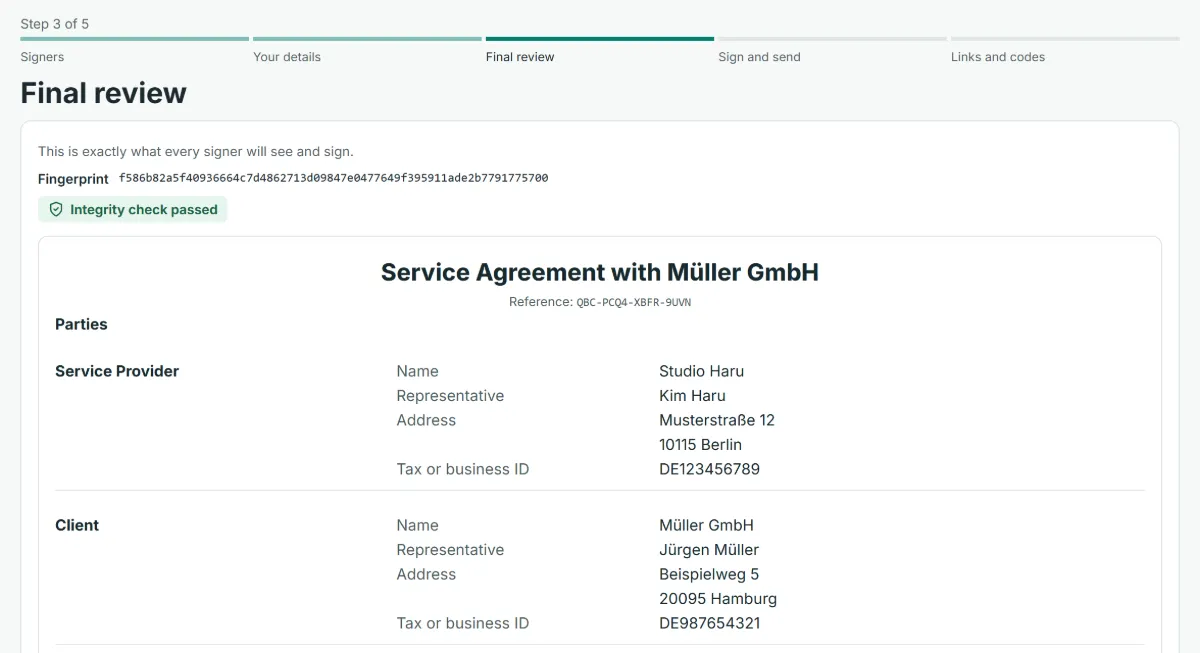
Check the final text
This is exactly what every signer will see and sign. The text is frozen here and given its SHA-256 fingerprint; any change to the content would change the fingerprint.
Sign first and send
Draw, type or upload your signature, agree to sign electronically, and send. Your signers will see your account email.
Deliver the link and the code by different routes
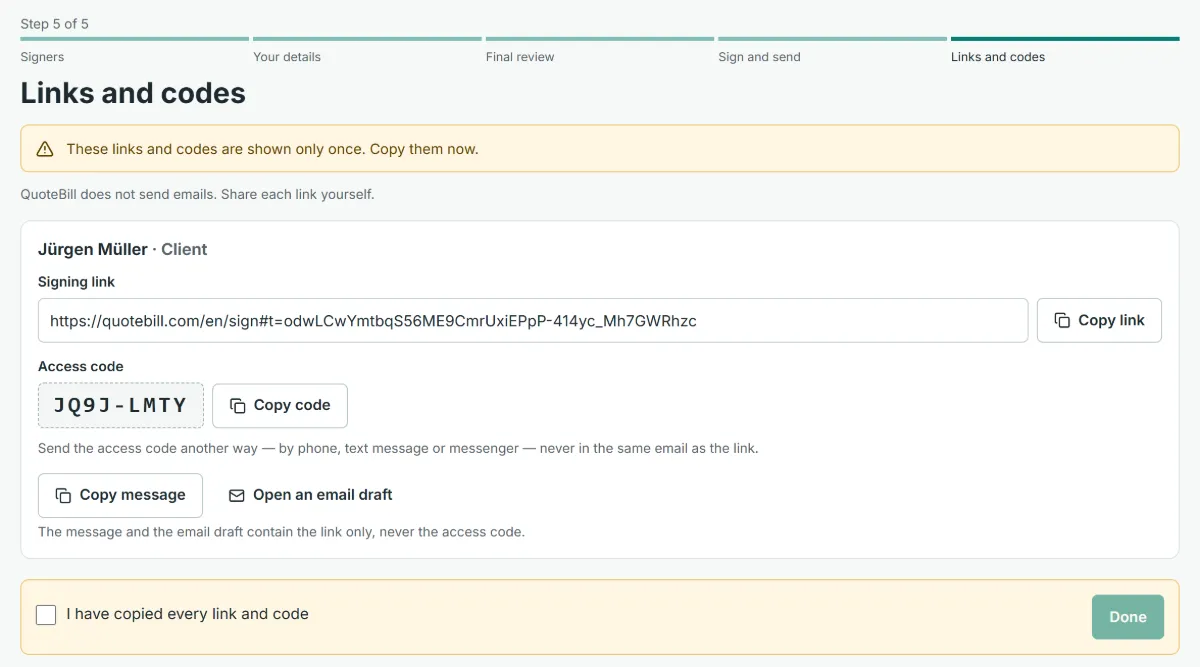
Each link and code is shown once. Copy the link into an email or a messenger, or use the ready message or the email draft, then give the code by phone, text message or another channel.
A message you can paste
QuoteBill prepares this message for you, in the language of the contract, with the link already in it. If you write your own, keep to the same rule: the link, never the code.
Hello [name],
Please review and sign this contract: [title]
[signing link]
I will send you the access code separately.
[your name]
Then give the code by phone, text message or a different messenger. Never put it in the same message as the link: whoever has both can sign.
While the contract is out
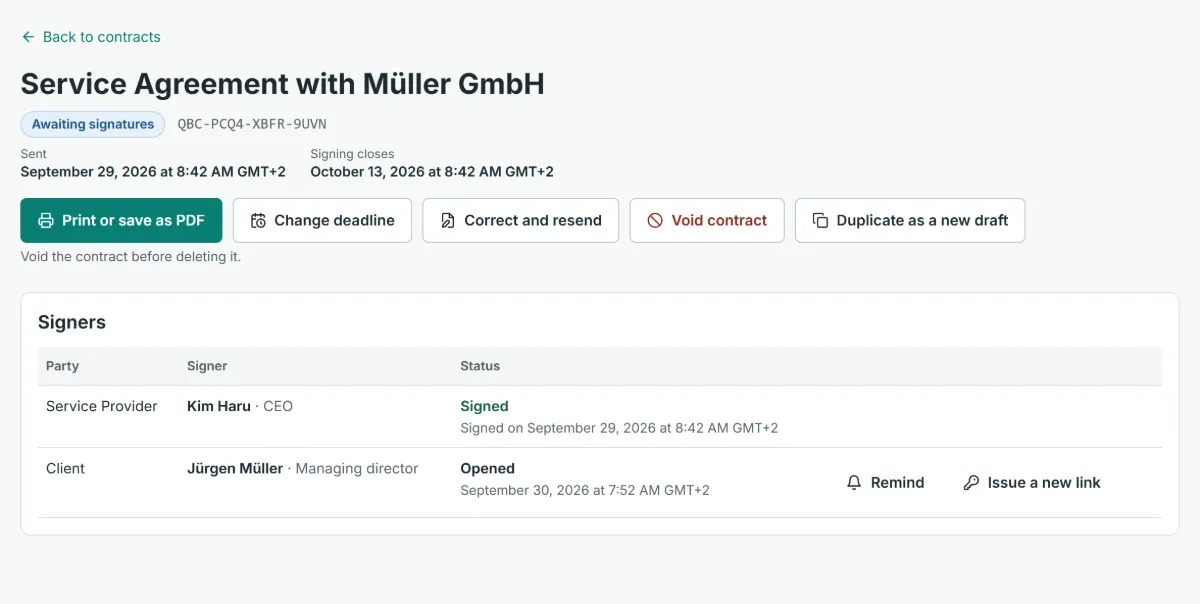
Everything you do here is recorded in the audit trail with its time. QuoteBill does not contact your client: every message goes through you.
Deadline
Move the signing deadline earlier or later: 1 to 60 days from today, never more than 180 days after sending, up to 10 times. Your client sees the new date on the contract.
Reminder
Copy a reminder QuoteBill prepares, or open it as an email draft. It names the contract, the reference and the deadline, never the link or the code. Every party’s certificate lists that a reminder was prepared, not its text.
New link
If a link is lost, blocked or in the wrong hands, issue a new one: the old link and its code stop working at once. Up to 10 new links per signer.
Calendar
From your contract list, save the signing deadline, or the end date of a completed contract, as a calendar file. It holds the title, the reference and the date, nothing else.
When everyone has signed
Copy a completion notice that asks every signer to save their copy while their link still opens: 30 days after completion. The signed PDF, the certificate and the evidence file are on your contract page.
What your client can do, and what stays on their side
Read and print
Read the whole contract on the screen and print a copy before deciding. The reference and the fingerprint are one tap away, to compare with the certificate later.
Decline, with a reason
Nobody has to sign electronically. A client who declines gives a reason, which you can read, and the contract is closed for everyone.
Ask for paper
The disclosures say so on the screen: a signer may ask you for a paper copy instead.
Report abuse
A “Report this contract” link is on the code screen and under the contract. QuoteBill reviews reports and may suspend a contract; the certificate shows that a report was made, never its text.
No account, email optional
Your client never creates an account and never sees the other signers’ email addresses. If you entered their email, it addresses your own email drafts; QuoteBill sends nothing to it.
Their record
Before signing, your client agrees that the time, their IP address and their browser are recorded and shared with the other parties. The signing page stays open for 30 minutes at a time (two hours at most), and the link stops working 30 days after completion.
Questions senders ask
Does my client need an account?
No. The link and the access code are all they need, on any phone or computer with a current browser.
Does QuoteBill email my client?
No. QuoteBill never emails or messages signers. It gives you the link, the code, a ready message and an email draft; you deliver them, and any reminder, yourself.
Which language will my client see?
The language of the contract. The signing pages exist in 33 languages; the sample contract texts are written in English, Korean, Japanese and German.
What if my client loses the link, or a scanner opened it?
A link opens nothing until someone presses Continue and, with the code on, enters the code. If a link is lost, issue a new one from your contract page: the old one stops working at once.
What if my client types the code wrong?
The screen says how many attempts are left. After 5 wrong codes the link locks for 15 minutes, and after 15 it stops working; then you issue a new link. Every wrong code is recorded in the audit trail.
Can my client sign on a phone?
Yes. The pages are made for phones first: the signature is drawn with a finger, or typed, or a picture of a seal or signature is uploaded.
Can my client sign with a company seal?
Yes, as a picture: a PNG, JPEG or WebP of the seal or signature, kept inside the contract. It is not a registered seal, such as a Korean 인감 or a Japanese 実印, and QuoteBill does not check it.
Will my client see my email address?
Yes. The contract screen names you and your account email, so your client can check that the contract really comes from you. Signers do not see each other’s email addresses.
What does my client see after signing?
That their signature is recorded, and the other signers with where each stands. Once everyone has signed, the same screen offers the signed PDF, the verification link and the evidence file, for 30 days.
Is a signature made this way valid?
In the EU, the UK, the US and Korea a signature is not denied legal effect only because it is electronic, and in Japan most contracts need no particular form at all. What a simple electronic signature proves in a dispute depends on the evidence behind it, and some documents need another form. Read the guide, and ask a lawyer when in doubt.
Next
Ready to send your first contract?
Sign in, write the contract from a template or from a quotation, and send it. Your client gets a link and a code; you get the audit trail.