Free invoice generator
Download the invoice as Excel or Word with working formulas (free for QuoteBill members), or edit it online with your logo and tax settings and save a PDF.
Free generators
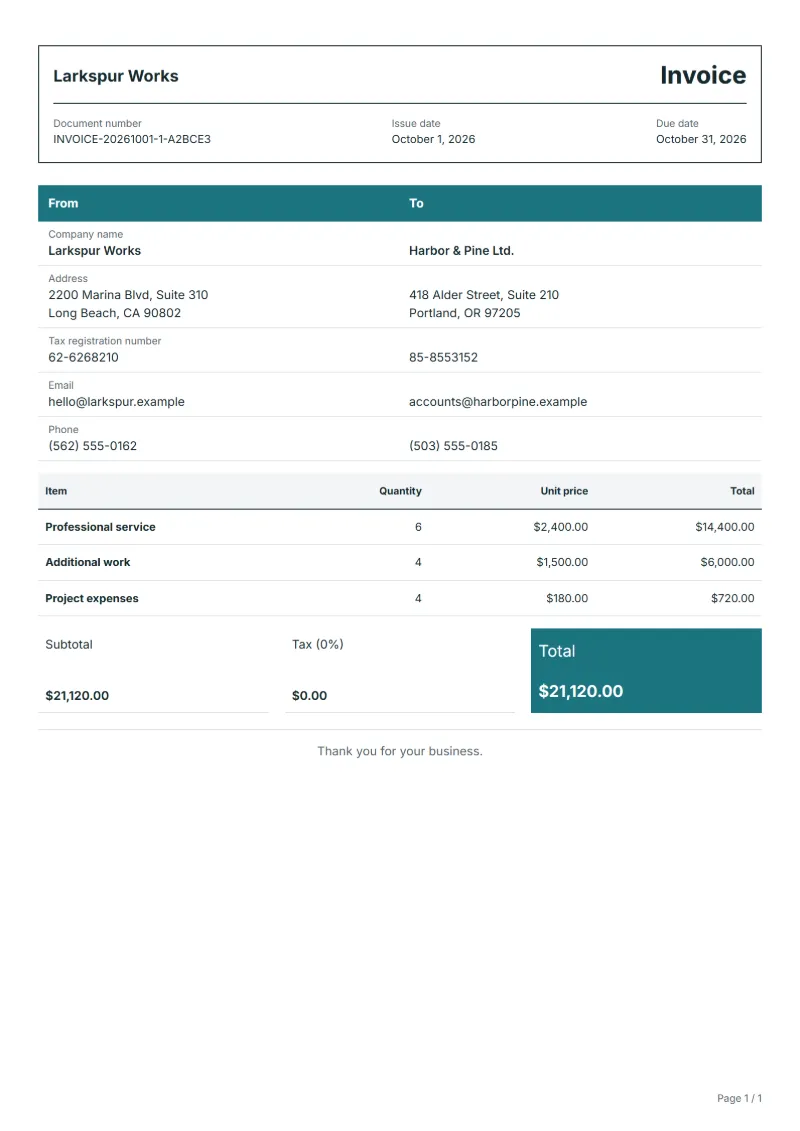
- Professional service
- Additional work
- Project expenses
How to fill in the free invoice generator
Example workflow
Replace the sample lines
Start with "Professional service": enter what you actually did or sold, the quantity and the unit price, then work down the list.
Set the tax rate and check the total
Check the last line, "Project expenses", enter the tax rate that applies to your customer, or 0, and read the total payable against your own sum.
Print or save the invoice
Open Print / PDF, choose a printer or Save as PDF, send the file to the customer and reconcile payment against the invoice number.
Most people who open the invoice generator have just finished a job and want to bill it today, without setting up accounting software first. It starts from a complete invoice with three general lines: the service you agreed, work added along the way and costs you paid on the customer’s behalf. That split suits almost any service business, from a bookkeeper to a sound technician. With your logo in place and numbering done automatically, the next invoice needs only a new customer and new lines.
Fields to prepare
- Deliverables and line items
- Professional service, Additional work, Project expenses: these are the sample lines; type over each with what you billed, one line per service or product, with its quantity and unit price.
- Professional service
- Describe the service in the words the customer used when ordering, such as “Monthly bookkeeping, March”, and use hours, days or 1 for a fixed fee.
- Additional work
- Add when and how the extra work was requested, for example “requested by email on 14 May”, so the line does not read as a price increase.
- Project expenses
- Name the supplier and date of each cost, such as “Courier, 12 May”, and attach copies of the receipts to the email that carries the invoice.
- Your details and the customer
- Enter your business name, address and tax or registration number, then the customer's name and address. QuoteBill warns you before printing when the company name is empty.
- Number, dates and terms
- Give the invoice a number you have not used before, the issue date and a due date, and write the payment terms in words, for example "Due within 14 days".
- Scope to agree
- Bill extra work as a line of its own, with its own quantity, so the customer can see what was in the first agreement and what was added later.
Before sending
- Does “Professional service” show the quantity actually supplied, not the quantity first quoted?
- Is “Additional work” charged at the rate the customer agreed to, with any change approved?
- Is “Project expenses” finished and accepted, or does it belong on a later invoice?
Show 3 more
- Replace or delete every sample line before you send; a sample line left in looks like a charge.
- Type a tax rate: QuoteBill asks for one before printing, and 0 is accepted when no tax applies.
- Match the completed work to your order or approval record, then confirm the due date and the amounts already received.
Worked example: a three-line invoice
The figures are an example, in dollars, and the tax rate of 8% is only there to show the sum. You billed ten hours of work, three more hours added later and one expense.
| Item | Quantity × unit price | Amount |
|---|---|---|
| Professional service | 10 × $90.00 | $900.00 |
| Additional work | 3 × $90.00 | $270.00 |
| Project expenses | 1 × $64.80 | $64.80 |
| Subtotal | $1,234.80 | |
| Sales tax (8%) | $98.78 | |
| Total | $1,333.58 | |
The lines add up to $1,234.80. Tax at 8% is $98.78, so the total payable is $1,333.58. Enter each line, then compare the total the editor shows with this sum before you send.
Common mistakes when you fill in an invoice
- Leaving a sample line such as "Professional service" in place after changing the amounts.
- Reusing a number from an earlier invoice, which makes two documents impossible to tell apart.
- Applying the tax rate to a total that already includes tax instead of to the net amount.
- Putting extra work and expenses into one lump sum, so the customer cannot match them to what was agreed.
- Leaving out the due date or the payment details, so the customer has to guess when and where to pay.
What the document must show
These details make an invoice easier to approve and to file.
- Your business name, address and registration or tax number
- The customer's name and address
- Issue date and a document number you do not reuse
- Each line item with quantity, unit price and amount
- Tax shown separately from the net amount, and the total payable
- Payment terms: due date, bank details or accepted payment methods
The sales tax depends on where the work is supplied, so set the rate that applies to your customer before sending.
Official rate reference: US government: state and local taxes
Frequently asked questions
Free invoice generator: what should it include?
Start with the three sample lines — Professional service, Additional work, Project expenses — and replace them with what you billed. Then add your business details, the customer, a number you have not used before and a due date.
How do I add or remove invoice lines?
Add one line per service or product and remove the sample lines you do not need. Each change updates the net amount, the tax and the total.
Can I bill extra work on the same invoice?
Yes. Give it a line of its own, as the sample "Additional work" does, so the customer sees what was added after the first agreement, and keep their approval with your records.
Can I add project expenses?
Yes. Put each expense on its own line, as the sample "Project expenses" does, and keep the receipts. If you pass costs on without a mark-up, say so on the line.
Do the Excel and Word files keep the formulas?
Yes. The spreadsheet keeps its formulas, so changing a quantity updates the tax and the total. You can fill in this template and print it or save it as a PDF without an account; the Excel and Word downloads need a free account.
What do I do once it is filled in?
Open Print / PDF and print it or save it as a PDF, send it to the customer, and note the invoice number and the day you sent it. When the money arrives, quote that number on the receipt.
Read next
Reading for the Free invoice generator: How to write an invoice: a step-by-step example and Credit note vs invoice (and credit memo): how to issue one. The VAT and GST calculator works out the tax line for you.