Free PDF invoice generator
Download the invoice as Excel or Word (free for QuoteBill members), or edit it online, check the page breaks in the preview and save a PDF from your browser.
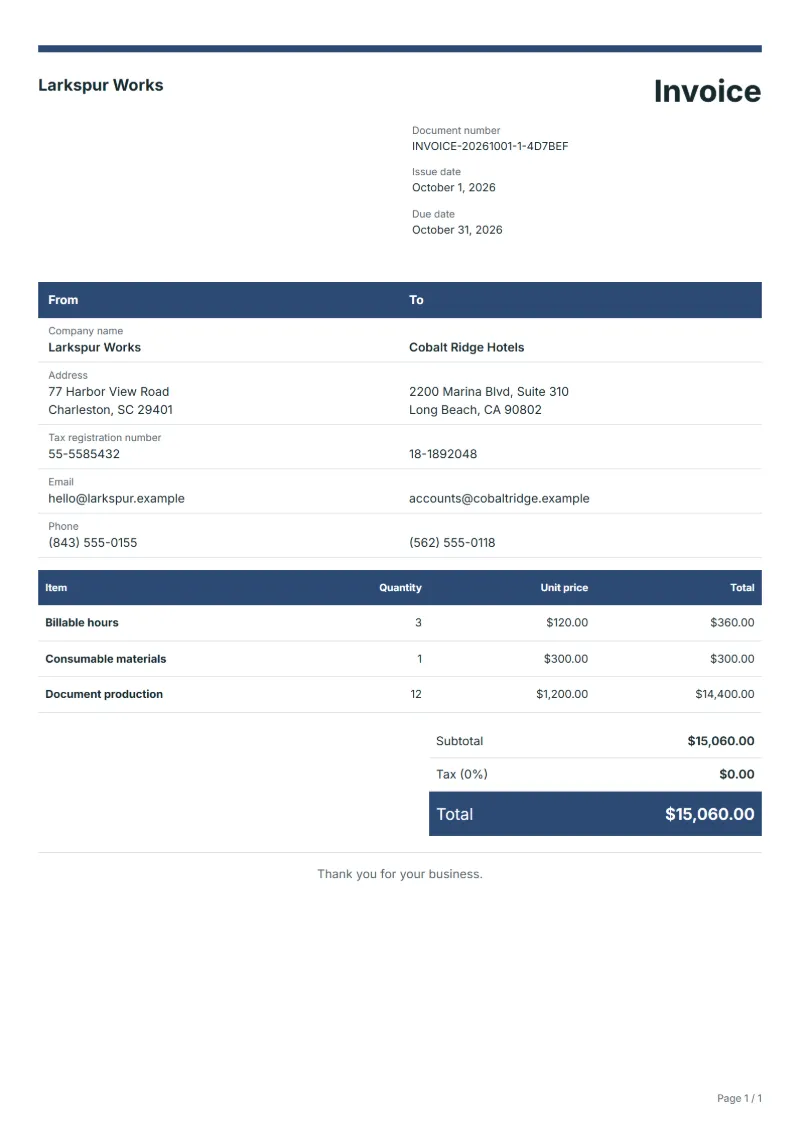
Free generators
- Billable hours
- Consumable materials
- Document production
What a good invoice PDF contains
Example workflow
Fill in the invoice
Enter the lines from "Billable hours" downward, the customer, the number and the tax rate, and name the document before you print.
Save it as a PDF
Open Print / PDF, choose "Save as PDF" as the destination, and check the lines down to "Document production" and the totals in the preview before saving.
Send it and reconcile
Attach the PDF to your message, say which invoice number it is, and reconcile payment against the invoice number when it arrives.
Many customers, especially those with an accounts department, only process an invoice that arrives as a PDF attachment or is uploaded to their supplier portal. This generator is built for that hand-off: you fill in the invoice in the browser and save it through the print dialog, so the file looks the same on every screen and printer. Its sample lines suit a job billed by the hour that also uses materials and produces documents, such as a print shop, a technical writer or a survey office.
Fields to prepare
- Deliverables and line items
- Billable hours, Consumable materials, Document production: three sample lines for a job billed by the hour, with materials and the finished documents; keep each as its own row in the PDF.
- Billable hours
- Round hours the same way on every invoice, for example to the nearest quarter hour, and say once in the notes how you round.
- Consumable materials
- Use the unit the material is bought in, such as sheets, liters or reels, so the quantity on the PDF can be checked against stock records.
- Document production
- Name the finished documents and their format, for example “3 bound copies and 1 PDF”, instead of a bare number of documents.
- Document name and file name
- Give the document a name such as "Invoice 2026/014 Brightside Print". QuoteBill hands the name to the print dialog and replaces characters a file name cannot hold, such as the slash, with hyphens.
- Page layout and totals
- Check where the page breaks: the tax line and the total payable should not be separated from the lines they add up.
- Scope to agree
- List hours with the dates worked, consumables by quantity and document production by file name and count, so the PDF can be checked without a phone call.
Before sending
- Does “Billable hours” show the quantity actually supplied, not the quantity first quoted?
- Is “Consumable materials” charged at the rate the customer agreed to, with any change approved?
- Is “Document production” finished and accepted, or does it belong on a later invoice?
Show 3 more
- Open the saved PDF once before sending and read the numbers, the dates and the payment details.
- Keep the file name to the invoice number and the customer, so both of you can find it later.
- Compare the completed work with the PDF line by line, and check that the due date and any amounts already received are shown.
Worked example: an hourly job as a PDF
The figures are an example, in dollars, with an example tax rate of 8%. A job billed by the hour: twelve billable hours, four consumables and one document-production fee.
- Name the document "Invoice 2026/014 Brightside Print" before you print.
- In the print dialog choose "Save as PDF"; the browser suggests "Invoice 2026-014 Brightside Print.pdf".
- Open the saved file and compare its total with the sum below.
| Item | Quantity × unit price | Amount |
|---|---|---|
| Billable hours | 12 × $75.00 | $900.00 |
| Consumable materials | 4 × $18.50 | $74.00 |
| Document production | 1 × $120.00 | $120.00 |
| Subtotal | $1,094.00 | |
| Sales tax (8%) | $87.52 | |
| Total | $1,181.52 | |
The lines add up to $1,094.00, tax at 8% is $87.52, and the total payable on the PDF should read $1,181.52.
Common mistakes with invoice PDFs
- Sending a screenshot or a photo of the screen instead of a PDF, which cannot be searched or copied into a bookkeeping program.
- Saving the file as "invoice.pdf" or "scan001.pdf", so neither of you can find it among the other files.
- Not opening the saved file, and sending a PDF in which a long table has been cut across two pages.
- Putting the due date and the payment details in the email only, and not in the file itself.
- Overwriting an invoice you have already sent with an edited copy under the same number; issue a credit note and a new invoice instead.
What the document must show
These details make an invoice easier to approve and to file.
- Your business name, address and registration or tax number
- The customer's name and address
- Issue date and a document number you do not reuse
- Each line item with quantity, unit price and amount
- Tax shown separately from the net amount, and the total payable
- Payment terms: due date, bank details or accepted payment methods
The sales tax depends on where the work is supplied, so set the rate that applies to your customer before sending.
Official rate reference: US government: state and local taxes
Frequently asked questions
Free PDF invoice generator: what should it include?
A PDF invoice should carry everything the paper one would. Start with the sample lines — Billable hours, Consumable materials, Document production — then your details, the customer, the invoice number, the dates, the tax and the payment terms.
How do I save the invoice as a PDF?
Open the template in the editor, choose Print / PDF and pick "Save as PDF" in the print dialog; the exact wording depends on your browser. Ctrl or Cmd + P opens the same dialog.
What will the PDF file be called?
The browser suggests the document name, with characters a file name cannot hold replaced by hyphens, so "Invoice 2026/014 Brightside Print" is offered as "Invoice 2026-014 Brightside Print.pdf". A document with no name uses its number.
What should I check before I send it?
Open the saved file and read it as your customer will: the number, both addresses, each line, the tax, the total payable and the payment details. A mistake is cheaper to fix before the file leaves.
Can I send the PDF by email?
Yes. Attach the saved file and put the invoice number and the due date in the subject or the first line, so the customer can book it without opening the attachment first.
Is a PDF enough, or do I need another format?
That depends on your customer: many accept a PDF by email, while some require invoices through their own portal or in a structured format. Ask when you take the order.
Read next
Reading for the Free PDF invoice generator: How to write an invoice: a step-by-step example and Credit note vs invoice (and credit memo): how to issue one. The VAT and GST calculator works out the tax line for you.